

I shrank five public-domain photos to a quarter of their size. Then I ran them back up through four free AI models and compared every result with the original, pixel by pixel. Plain bicubic resizing, the non-AI enlargement every photo editor has, came out closest to the real photos. For most people, the best AI image upscaler is Topaz Gigapixel for prints, Upscayl for free, and Windows Photos on a Copilot+ PC.
- What’s the best AI image upscaler for your job?
- How I tested AI upscalers against the original photos
- Does an AI upscaler recover detail or invent it?
- What do the creativity and strength sliders actually do?
- The best AI image upscalers in 2026
- 1. Topaz Gigapixel: best AI image upscaler for photos you’ll print
- 2. Aiarty Image Enhancer: best for cheaper upscaling on your own computer
- 3. Magnific: best for AI art and deliberate redraws
- 4. Let’s Enhance: best for product photos in bulk
- 5. Adobe Photoshop and Lightroom: best if you already pay for Adobe
- 6. Windows Photos: best free upscaler if your PC has it
- 7. Upscayl: best free upscaler that stays on your computer
- 8. waifu2x: best for anime, illustrations and line art
- What does a free AI image upscaler actually give you?
- What does one upscale really cost?
- When does an upscaled photo stop being the same photo?
- Does the upscaled file say it was AI-edited?
- Where does your photo go when you upscale it?
- Same model, different name: what’s inside free upscalers?
- How to upscale an image without inventing detail
- When should you skip the upscaler?
- Frequently Asked Questions
- What is the best AI image upscaler right now?
- Does AI upscaling add detail that wasn’t in the photo?
- Can an AI upscaler read a blurry license plate?
- What is the best free AI image upscaler without an account?
- Is Upscayl free for commercial use?
- Is Topaz Gigapixel a one-time purchase?
- Can I sell AI-upscaled photos on stock sites?
- Can I use an upscaled photo in an Etsy listing?
- Does upscaling add an AI label to the file?
- Which upscaler is best for anime and illustrations?
- My Take
Then I made the test harder. At one eighth of the size, three of the four models turned an unreadable name tag into letters that spell nothing. That’s the thing to know before you pick a tool. An AI upscaler guesses, and the best one is the one whose guesses you can see and control.
What’s the best AI image upscaler for your job?
There isn’t one winner. The jobs pull in opposite directions. A photographer printing a client’s crop wants the upscaler that invents the least. Someone enlarging a Midjourney image for a poster wants the one that invents the most. Here are my eight picks, by job.
My short version: buy Topaz Gigapixel if you sell prints and need control. Use Magnific if you want a picture redrawn on purpose. Start with Upscayl or Windows Photos if you only need a bigger file for the web. Each pick below says what the tool does to an image, which a guide built on screenshots can’t show you.
How I tested AI upscalers against the original photos
Most upscaler guides show a blurry input next to a sharp output and call it a win. That comparison can’t tell you whether the sharp detail is real. You need the original. So I started with photos I had at full size.
- I took five public-domain photos from Wikimedia Commons: a neon diner sign and a hardware store wall by Carol M. Highsmith, a line of quilts in Lancaster County, an autumn hillside in Vermont, and NASA’s official portrait of astronaut Shannon Walker.
- I cut six test areas from them: a face, a name tag, neon lettering, cluttered shelves, quilt patterns and foliage.
- I shrank each area to one quarter of its width and height, and for the lettering test to one eighth.
- I enlarged each one back up ×4 with plain bicubic resizing, with Real-ESRGAN, a free open-source model from 2021, and with the four models Upscayl ships: Standard, UltraSharp, Remacri and High Fidelity. Standard turned out to be Real-ESRGAN under another name, so that’s four distinct AI models. All of it ran on my laptop.
- I scored every result against the original with PSNR and SSIM, two standard measures from image research of how close two pictures are. Higher means closer. Then I put the same crops side by side and read them by eye.
I also tried two free online upscalers in the browser, without an account. Paid cloud tools such as Magnific, Let’s Enhance and Topaz’s apps need an account or a plan. I don’t buy software for reviews. For those tools I rely on their own documentation and published samples, and each pick says which kind of evidence it rests on.
More Read

I’m not the first person to test this way. In May 2025, a Reddit user called promptingpixels described the same method: “To try and control this, I am effectively taking a large-scale image, shrinking it down, then blowing it back up with an upscaler.” None of the ten guides ranking in Google for these searches on October 30, 2026 did it. They compared outputs with inputs. Never with an original.
Does an AI upscaler recover detail or invent it?
It invents it. Whichever tool you call the best AI image upscaler, it looks at the pixels you have and draws the detail it predicts from millions of other images. When the guess matches the scene, you get a sharper photo. When it doesn’t, you get sharp detail that was never there. The model can’t tell the difference. Neither can you, without the original.
The makers say so in their own help pages. Krea, an AI image app with its own upscaler, says in its Enhancer documentation that the tool “does not recover what was originally there,” and adds: “It cannot reveal what text on a blurry sign actually said, for example.” Upscayl’s README says it enhances images “by guessing what the details could be.” Microsoft’s help page for Super resolution in Windows Photos says the model “fills in missing details.”
Researchers call this the perception-distortion tradeoff. In a 2018 paper, Yochai Blau and Tomer Michaeli showed that an image restoration method can’t be both as faithful and as natural-looking as possible. Push one, and you lose some of the other. My numbers say the same thing more plainly. Averaged over the six test areas, bicubic resizing scored 27.05 dB on PSNR and 0.736 on SSIM against the originals. The best AI model, Remacri, scored 26.33 dB and 0.689. Real-ESRGAN scored 24.33 dB and 0.644. On both scores, higher means closer to the original. The AI versions looked sharper. They were also further from the real photo.
Averages can hide a lot, so I also cut every test area into 176-pixel patches and scored each one, 336 patches per method. On SSIM, Remacri beat bicubic in 124 of them. Real-ESRGAN didn’t beat it in a single one.
The scores also showed where AI earns its keep. On the neon sign, Remacri beat bicubic outright, 32.5 dB to 29.0 dB, because bright edges on a dark background are easy to predict. On the quilt, Remacri’s SSIM edged past bicubic, 0.787 to 0.764, because a repeating pattern is easy to guess. Foliage was the hardest area, with PSNR below 18 dB for every method. Thousands of leaves leave nothing to predict, so every AI model simply drew new leaves, and bicubic smeared them.
The blurry version was the only honest one: it was soft, but it invented nothing.
The name tag showed why that matters more than which brand wins a list of the best AI image upscalers. At one quarter of the size, every model kept “SHANNON WALKER” readable. At one eighth, the input was a smear of yellow pixels. Bicubic gave back a soft smear you could still half-read. Real-ESRGAN and Upscayl Standard printed thick, confident block letters that spell nothing. UltraSharp did the same in a thinner font. High Fidelity landed in between, half-sharp and still wrong. Remacri’s letters came closest to the real name, though still misshapen. None of them said it was guessing.
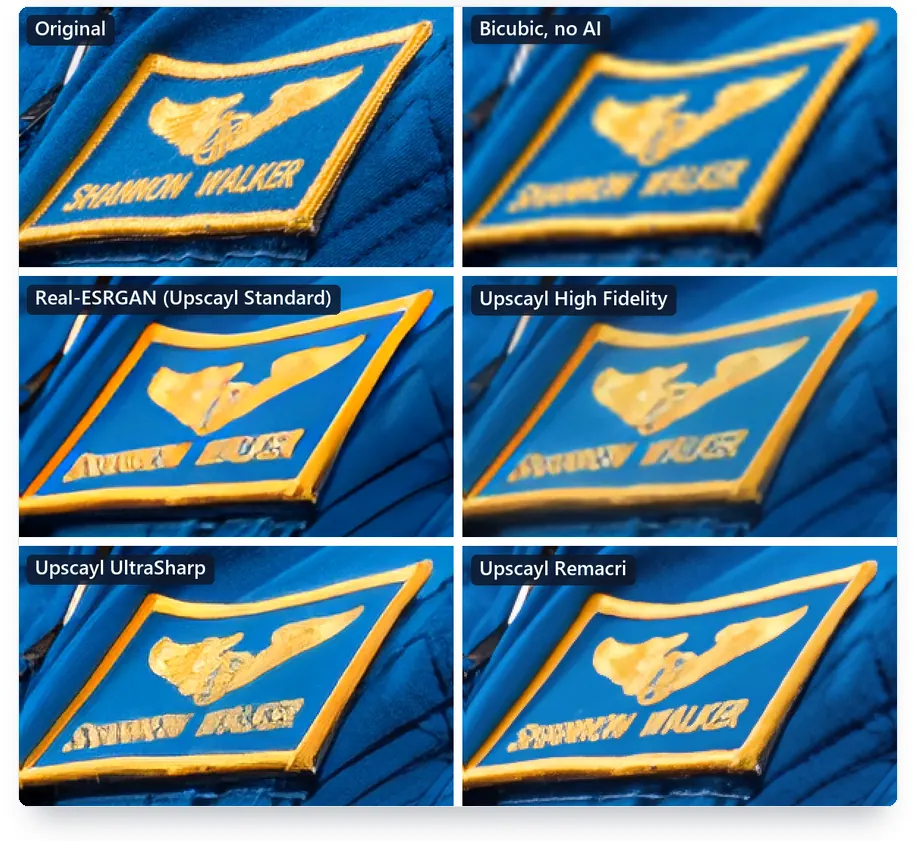
Fabric and skin went two ways. Real-ESRGAN and High Fidelity wiped the weave of the flight suit into flat blue and smoothed the astronaut’s wrinkles into wax. UltraSharp and Remacri went the other way. They drew a weave that looks like fabric but doesn’t match the real threads. They also added lashes and fine lines that aren’t in the portrait. At this size, her face stayed recognizable in every model.
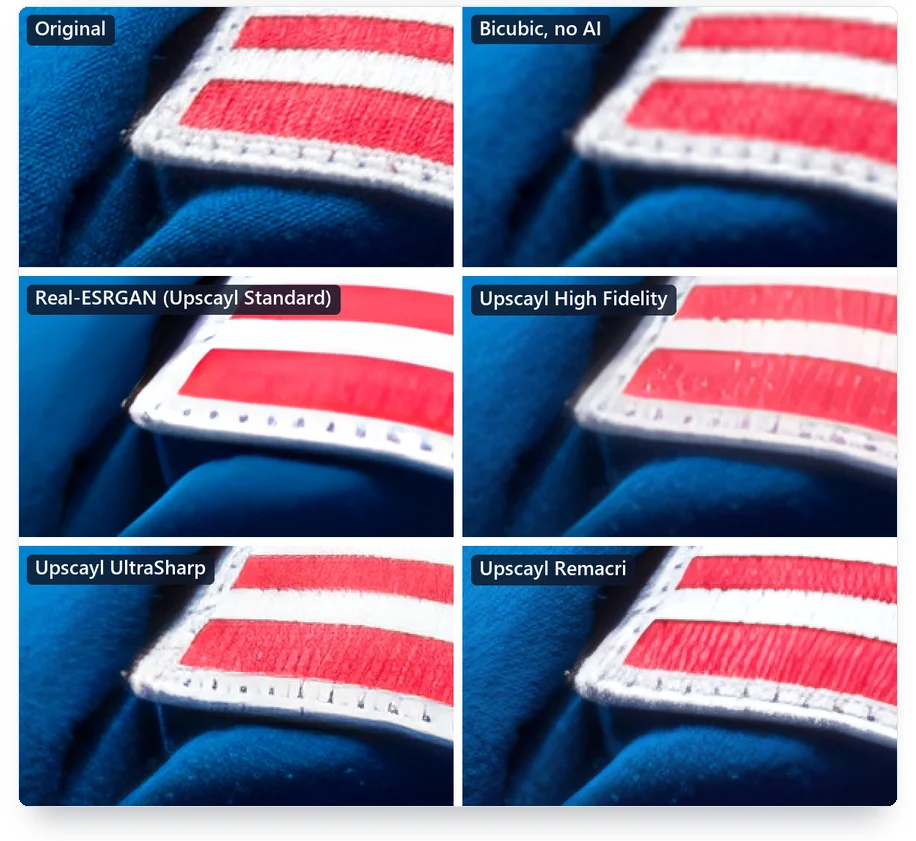
Put all five methods side by side and ask which one had the highest SSIM in each patch, and bicubic won 199 of the 336. Remacri won 117, most of them on the quilt and the shelves. Real-ESRGAN, the model behind Upscayl’s default, won none.
What do the creativity and strength sliders actually do?
They set how much the model is allowed to invent. Every serious AI upscaler has some version of this control, and its default matters more than the brand name on the box.
Krea’s documentation is the clearest I found. Its Strength setting “Controls how much additional detail the AI invents.” Its Texture setting says “a higher value generates additional texture.” Further down, Krea gives two examples that apply to every creative upscaler. “Upscaling a painting with high texture will fill in additional brushstrokes that were not in the original,” it says. High sharpness can also end up “adding visible pores and fine lines to skin that was originally clean.”
That second line describes exactly what I saw from UltraSharp and Remacri on the astronaut’s face, with no creativity setting to touch. Even the size of the jump counts. Krea warns that a bigger upscale factor “can introduce subtle modifications to textures and edges.”
Here’s how I’d set them. For a record you need to trust, such as a family photo, a product shot or a document, put strength and creativity at their lowest and enlarge in one modest step. For art, a poster or an AI image, raise them and enjoy the invention. The best AI upscaler for your job is the one whose sliders you’ll actually set rather than leave at the default.
The best AI image upscalers in 2026
These are the eight best AI image upscalers I’d hand to a friend, sorted by the job they do best. Prices are for the US and dated. Where I ran a tool myself, I say so.
1. Topaz Gigapixel: best AI image upscaler for photos you’ll print
Topaz Gigapixel is the tool other upscalers compare themselves to, and the one I’d use for a paid print job. I didn’t run it myself, because it needs a plan. It runs on your computer, and Topaz’s page states it plainly: “Your files never leave your computer with local rendering.” You can also send work to Topaz’s cloud when your machine is slow.
It’s a subscription now. No exceptions. Topaz sells Gigapixel on Personal and Pro plans or inside the Topaz Studio bundle, with no one-time license on its page. On October 31, 2026, Topaz’s US pages listed Gigapixel at $29 a month, or $149 a year billed annually, and the Pro version at $499 a year. That trips up anyone who trusts search. On October 30, 2026, Google’s AI Overview for “best ai image upscaler” still described Gigapixel as having “a traditional one-time licensing fee rather than a recurring subscription.”
Two buyers in Aiarty’s subreddit said what many feel. “Topaz is solid but yeah the subscription model is brutal,” wrote snideswitchhitter in February 2026. In June, CDanger went further: “I’ll never use Topaz due to the all-in subscription model.”
What matters for faithfulness is the model menu. Gigapixel has conservative models and generative ones, and Topaz says its “Wonder models are generative and require cloud rendering on Intel Macs.” Pick a conservative model for anything that has to match reality. Keep the generative ones for art. Topaz also told NBC News in 2024 that it strongly recommends against using its AI for forensic or legal work.
2. Aiarty Image Enhancer: best for cheaper upscaling on your own computer
Aiarty keeps coming up when people complain about Topaz’s subscription. Citing Reddit, Google’s AI Overview for “best image upscaler” credits it with keeping skin pores and fabric natural instead of waxy. Snideswitchhitter put it the same way: “Aiarty keeping texture detail is the real win that’s what most upscalers screw up.”
Read that praise with its address in mind. The thread it comes from sits in r/Aiarty, a subreddit named after the product. Aiarty runs on your computer, and its page says so plainly: “Processing runs offline on your device, so your images stay private and secure.” Its maker, Digiarty, sells a yearly license and a lifetime one. On October 31, 2026, the US page listed them at $59 a year and $109 once, both cut from $85 and $155 under a countdown timer. I didn’t run it. It needs a purchase, so I can’t confirm the texture claim from my own test.
Choose it if you want a desktop upscaler without a monthly bill, and keep in mind that the loudest praise comes from a forum named after the brand.
3. Magnific: best for AI art and deliberate redraws
Magnific is the upscaler you pick when you want the picture redrawn. It’s built to add detail, and that’s what its fans pay for. “No one else can achieve the same results as Magnific AI,” wrote unknownpsp on Reddit in December 2023. Six weeks later, TheBrianLife gave the other side: “Yes the details are amazing but sometimes a little too much. Like lots of wrinkles in the lips, or faces look very weathered and too old.”
That second quote is the honest description of a creative upscaler. It invents on purpose. For AI art, concept work and posters, that’s the point. For a family photo or a product shot, it’s a liability, so use Magnific’s lower-creativity settings or a different tool.
The bill is the other thing to read before you start. Magnific prices the job in credits, and a bigger output costs more credits. On the Premium plan, $14.50 a month billed annually for 240,000 credits a year, a 2K upscale costs 90 credits and a 4K one 360, Magnific’s help page says. Premium+ and the plans above it include unlimited editing. Freepik, which owns Magnific, now runs its whole site under the Magnific name. “Freepik is now Magnific,” its pages say. TheBrianLife’s complaint from January 2024 is a useful warning about credit-priced tools in general: “I used up most of them half of them in one night.” He also hit a size ceiling the marketing didn’t mention at the time: “It always gives me an error saying that the limit is basically 10,000 x 10,000.” That was early 2024, so check today’s limits on Magnific’s own page before you plan a big print.
4. Let’s Enhance: best for product photos in bulk
Let’s Enhance is built for the job most sellers have: a folder of small supplier photos that need to be bigger and cleaner for a store. It works in the browser and handles batches. Its sister service Claid sells the same kind of processing to developers through an API. Its credit math is the simplest in this list: one image costs one credit. The Starter plan gives 100 credits a month for $9 a month billed annually, or $12 month to month. A new account gets 10 free credits, with a watermark and results capped at 8 megapixels.
One thing about the guides you’ll find while comparing it. Let’s Enhance publishes its own “best AI upscalers” articles, and they rank well. On the guide I read, dated January 9, 2026, the first tool reviewed was Let’s Enhance. The tool may still suit you, but read its rankings as marketing.
Check the privacy side before you upload a client’s images. The privacy policy, last updated March 1, 2024, says data is kept “in no event no longer than 12 months after the closing of your account.” It says nothing about training AI models on your uploads.
5. Adobe Photoshop and Lightroom: best if you already pay for Adobe
If you have a Creative Cloud plan, you already own two upscalers, and they behave very differently. Super Resolution, in Lightroom and Photoshop’s Camera Raw, runs on your computer and doubles an image’s width and height without spending credits. Generative Upscale in Photoshop sends the job to Adobe’s cloud. You pay for it with generative credits, the same allowance I broke down in my guide to what each AI edit actually costs.
Use Super Resolution for photographs you’ll print, because it’s built to stay close to the file. Reach for Generative Upscale when a small AI image needs to become a big one. Adobe’s help page lists three models inside it: Firefly Upscaler, Topaz Gigapixel, which Adobe says preserves existing detail, and Topaz Bloom, which it says adds new detail. The two Topaz models need a premium subscription. Adobe’s labeling FAQ says it attaches C2PA metadata automatically when qualifying generative AI tools create or modify content, so a Generative Upscale file can say it was AI-edited.
6. Windows Photos: best free upscaler if your PC has it
If you bought a Copilot+ PC, Microsoft’s label for a class of newer Windows laptops, you already have a decent upscaler. It’s free. Super resolution in the Microsoft Photos app enlarges a picture up to eight times and works on the device. Microsoft is upfront about how: its help page says the model “fills in missing details, making the photo look sharper and more defined.”
The catch is the hardware. Microsoft says Super resolution “is exclusive to Copilot+ PCs and currently supports only images,” so most older laptops don’t get it. Samsung’s Galaxy phones have a similar photo remaster feature in the Gallery app, and Google Photos offers enhancement tools on Pixel phones. If you’re on a phone, my guide to AI apps for iPhone that charge quietly covers the subscription traps around photo enhancers.
7. Upscayl: best free upscaler that stays on your computer
Upscayl is free, open source and runs on your own computer, on Windows, Mac and Linux, which makes it the easiest private option on this list. It’s the one I ran most. What I found inside it changed my advice.
First, its “Upscayl Standard” model is Real-ESRGAN under another name. The model file Upscayl ships matches Real-ESRGAN’s x4plus model byte for byte, and both produced identical images in my test. Upscayl credits Real-ESRGAN in its README, so this isn’t hidden, but the menu doesn’t tell you.
Second, the license. The Upscayl app is open source under the AGPL. Two of the models it ships, UltraSharp and Remacri, carry a Creative Commons non-commercial license on the model database where their authors publish them. The High Fidelity model carries a license that allows commercial use, and so does Real-ESRGAN, the model behind Standard, which is released under the BSD 3-Clause license. If you sell what you upscale, on Etsy or anywhere else, stick to the models whose license allows it. I looked at those licenses model by model in my guide to the license carried by the model underneath.
On quality, Remacri was the best AI model in my test overall and the closest to the real name tag. The default Standard model printed the confident nonsense. Upscayl’s latest release on GitHub is version 2.15.0 from December 25, 2024, although its code was updated as recently as March 2026.
8. waifu2x: best for anime, illustrations and line art
waifu2x is an older open-source model built, in its README’s words, for “Anime-style art.” Its author runs a free cloud version and an in-browser one, and the code is under the MIT license. The README also points Windows users to versions other developers built, such as waifu2x-caffe and waifu2x-ncnn-vulkan.
The same README says it supports photos too. I didn’t run it in my test, which used photographs only, so for photos I’d start with the picks above.
What does a free AI image upscaler actually give you?
Usually a smaller result than the page suggests, a short limit, and personal use only. Free is where the best AI image upscaler question gets the least honest answers. To find the best free image upscaler, I tried two of the best-known free browser upscalers without an account on October 30, 2026.
Upscale.media processed my first image, but only at 2x. Selecting 4x did nothing without an account. After a few images, the page said I’d reached my credit limit, and that one credit buys one image. Its FAQ says the free version is for personal use, and commercial use needs a paid PixelBin plan. iLoveIMG labeled its upscale options “Premium” and returned no result in my anonymous session.
So the free ×4 routes that actually worked for me ran on my own computer: Upscayl and, for Copilot+ owners, Windows Photos. Both are free for good. No credit counter. Canva has an online image upscaler too, and my breakdown of what Canva’s AI allowance actually buys shows how its plans count AI use.
What does one upscale really cost?
Upscalers sell plans, but you pay per job, and the unit changes from tool to tool. Some charge a flat subscription and let you run as many jobs as your computer can handle. Others charge credits per image, and some charge more credits for a bigger output.
Here’s the same job priced on three tools that charge per image: one 1024 × 768 photo enlarged twice, to 2048 × 1536, and four times, to 4096 × 3072. I used Magnific’s Premium plan and Let’s Enhance’s Starter plan, both billed annually, and upscale.media’s 125-credit pack.
Two rules come out of that chart. On a credit plan, the size you ask for can cost more than the tool you pick: Magnific charges four times the credits for a 4K result as for a 2K one, while Let’s Enhance charges one credit either way, and upscale.media says an upscale generally uses one. And if you upscale only now and then, a small credit pack is cheaper than a subscription, but practice on small outputs first. The tries you throw away cost credits too, the same trap I described in what 400 AI credits actually buy and in Midjourney’s GPU-time pricing.
When does an upscaled photo stop being the same photo?
When someone relies on it to show what was actually there. That’s the line. A wedding print can carry invented eyelashes. Court evidence, a product listing or a stock photo sold as a photograph can’t.
In court
In 2024, a King County Superior Court judge in Washington kept an AI-enhanced cellphone video away from a jury. The case was a murder trial, State of Washington v. Puloka, and the video had been enhanced with Topaz Labs software. A forensic video analyst for the prosecution testified that “the enhanced version contained visual data that was not in the original,” according to NBC News. The court found that admitting it “would lead to a confusion of the issues.”
It wasn’t a one-off. Courts keep seeing it. In its agenda book for October 15, 2026, the federal Advisory Committee on Evidence Rules cites Linkugel v. City of Los Angeles, where photos of a sinkhole modified with generative AI were kept out. The court “held that the plaintiff had made no showing, through an expert or otherwise, that the use of generative AI was reliable.” The same committee has a proposed new rule, Rule 707, for evidence produced by artificial intelligence.
On stock sites
Stock agencies don’t want invented detail sold as photography. They say so. Alamy says it doesn’t accept imagery “if they have, in whole or in part, been generated by AI.” It does allow “AI tools that mimic retouching tools already available (such as denoise).” Adobe Stock’s generative AI FAQ tells contributors, “Don’t increase resolution in ways that degrade quality.” Shutterstock doesn’t accept AI-generated content at all.
An Adobe Community thread shows how this plays out. A contributor whose images were refused got this reply from daniellei4510: “And that would explain why your images are soft. To enlarge AI results, you should be using an AI upscaler.” The advice is fine for AI art. For a photograph you sell as a photograph, a generative upscale is the riskiest thing you can do to it.
On marketplaces
Etsy’s listing image rules, updated October 22, 2026, require at least one unedited photo of the finished item in most listings. Etsy is blunt about it: “Do not use photo editing software or AI tools to alter this required photo.” Etsy allows scaling and cropping your other images, as long as they still show the item as it is. If you’re enlarging a supplier’s photo for an Etsy listing, the upscaled version can’t be that required photo. eBay’s picture policy lists “Photos that don’t accurately represent the item” among the pictures it doesn’t allow, so an upscale that invents texture or hides wear on a used item breaks it.
On faces and lettering
Faces and small text are where invented detail does the most damage, because people read them closely. On a restoration forum in 2020, a user of the Remini app wrote: “I have one photo where it added two irises and another where it put an eye inside their shirt.” Another user in the same thread noticed a child’s portrait come back wrong: “The eyes in this photo look like they belong to an adult, especially with the wrinkles!” Headshot apps push the same guessing further and draw a whole new portrait from your selfies. My guide to AI headshot generators covers what those services do with the photos you upload.
Text breaks even in the expensive tools. On Topaz’s own forum, a user named brad.barnes reported that “text that is sharp and doesn’t need sharpening often becomes ‘mangled’ when run though Photo AI.” And in 2024, an iPhone owner zoomed into a photo and found that “the license plates look scrambled/blurred,” like the letters in a login security check. My name tag test is the same story under controlled conditions.
Family historians are the most careful here. They should be. “What I strongly oppose is creation of detail that is not in the original,” ZhouLe wrote on r/Genealogy in December 2024. In the same thread, juliekelts added: “But whatever you do, I feel strongly that you should disclose it.” That’s the rule I’d use for any old family photo you upscale. Keep the original file, and label the new one as enhanced. Some apps label it for you whether you like it or not: “I find having a MyHeritage logo on treasured family photos to be kind of cheesy,” a genealogist wrote in 2020.
If you’re restoring an old family photo
Keep the original scan untouched, and save the upscaled copy under a different name. Run faces through the most conservative model you have, then compare the eyes, teeth and ears with the original before you share it. If a relative’s face looks younger or different, that’s the model guessing, and the earlier version is the true one. Repairing scratches and tears is a separate job from enlarging, and this guide covers enlarging.
Does the upscaled file say it was AI-edited?
Sometimes. Only some tools write it. The industry standard for this is Content Credentials, built on a specification from the Coalition for Content Provenance and Authenticity, or C2PA. Its current version lists resizing as its own action, defined as “Changes to either content dimensions, its file size or both.” The specification doesn’t mention AI upscaling by name.
In practice, the label depends on the app. Topaz added Content Credentials to Topaz Photo in August 2026, noting “that an image was processed with our application,” and said it did so to comply with the California AI Transparency Act. Adobe says it attaches C2PA metadata automatically when qualifying generative AI tools create or modify content in its apps, and that the metadata can’t be turned off for that content. The small free tools I tried give no sign of adding any label.
That matters for one practical reason. A buyer, a platform or a court can check only a label that’s there. If your upscaled image needs to stay credible, use a tool that writes the label, and don’t strip it afterwards.
Where does your photo go when you upscale it?
Either nowhere, or to someone else’s server, and that choice decides most of the privacy question. Desktop tools such as Topaz Gigapixel in local mode, Aiarty, Upscayl and Windows Photos keep the image on your machine. Cloud tools such as Magnific, Let’s Enhance and the free browser sites upload it, process it and keep it for a while.

How long they keep it is often vague. Let’s Enhance’s privacy policy gives a ceiling of 12 months after you close your account, and says nothing about model training. If you work with client photos, or pictures of people who haven’t agreed to an upload, a local tool removes the question. And if an image might be questioned later, keep the original. My test of free deepfake detectors shows how hard it is to prove an image is real once it has been edited.
Same model, different name: what’s inside free upscalers?
Some free upscalers run open-source models under their own names. Upscayl’s Standard model is the clearest case I found, since I could compare the files directly: it’s Real-ESRGAN, released in 2021 by Xintao Wang and colleagues. waifu2x also runs in versions other developers built from its open code.
That’s good news if you only need a bigger web image. The free tool and the paid wrapper may run the same model. It’s bad news if you sell the result. The model’s license travels with it. The same question comes up with AI music. My guide to what you’re allowed to do with AI output walks through it, and the logic carries over to images.
How to upscale an image without inventing detail
The method I’d use after this test takes five steps, and none of them needs a paid tool.
- Keep the original file untouched and work on a copy.
- Pick the most conservative model your tool offers, and set strength or creativity to its lowest.
- Enlarge only as much as you need. In my test, going from one quarter to one eighth turned honest blur into invented letters.
- Open your starting file and the result side by side at 100%. Anything sharper than the starting file could support, especially text and faces, is a guess.
- If something reads as text or a face that you can’t confirm from the original, crop it out or say it was enhanced.
That last step is the one most guides skip. Don’t. An upscaler can’t tell you which details are real, so the check has to be yours.
When should you skip the upscaler?
When a better source exists. Use it. An upscaler is the last resort for a small file, and several jobs have a better answer.
- For a logo or an icon, convert it to a vector file instead, and it will scale to any size without guessing.
- For an old print or negative, scan it again at a higher resolution before you reach for AI.
- For a stock photo or a client image, ask for the original file. It’s free and it’s real.
- For video, use a video upscaler. Video tools have to keep frames consistent over time, and that’s a separate job.
If your photos come from a trail camera or a phone at night, the same advice holds: get the camera right before you try to fix the file.
Field notes
- The test: six areas from five public-domain photos, shrunk to 1/4 and 1/8, enlarged ×4 on my laptop on October 30, 2026; scored with PSNR and SSIM against the originals.
- The scores: bicubic 27.05 dB / 0.736; Remacri 26.33 / 0.689; High Fidelity 26.28 / 0.670; UltraSharp 25.07 / 0.661; Real-ESRGAN and Upscayl Standard 24.33 / 0.644.
- The lettering: at 1/8, Real-ESRGAN (sold in Upscayl as Standard), UltraSharp and High Fidelity printed letters that spell nothing; Remacri came closest; bicubic stayed soft but half-readable.
- Same file: Upscayl’s Standard model and Real-ESRGAN’s x4plus model are byte-identical.
- Free routes: upscale.media gave 2x only without an account and hit a credit limit; iLoveIMG marked its options Premium.
- The rules: Etsy, updated October 22, 2026, bars AI edits to the required product photo; a Washington court excluded Topaz-enhanced video in State v. Puloka.
- Sources: Wikimedia Commons (Carol M. Highsmith, NASA); maker pages of Topaz, Krea, Microsoft and Upscayl; Etsy and Alamy policy pages; NBC News; Advisory Committee on Evidence Rules agenda book; C2PA specification 2.5.
Frequently Asked Questions
What is the best AI image upscaler right now?
Topaz Gigapixel, if you print photos and want control over how much it invents. For free, use Upscayl on your own computer, or Windows Photos on a Copilot+ PC. Magnific is the pick when you want an image redrawn on purpose.
Does AI upscaling add detail that wasn’t in the photo?
Yes, always. An AI upscaler predicts detail from other images and draws it in. In my test, plain bicubic resizing scored closer to the originals than every AI model, which looked sharper but strayed further from the real pixels.
Can an AI upscaler read a blurry license plate?
No. If the letters are unreadable in the original, the upscaler can only guess. Krea’s own documentation says its tool cannot reveal what text on a blurry sign said, and in my test three models printed letters that spelled nothing.
What is the best free AI image upscaler without an account?
Upscayl, because it runs offline with no account and no credit limit. Online, the free routes I tried were limited: upscale.media gave 2x only and stopped after a few images, and iLoveIMG marked its upscale options Premium.
Is Upscayl free for commercial use?
The app is free and open source, but check the model. Two models it ships, UltraSharp and Remacri, carry a non-commercial Creative Commons license. The High Fidelity model allows commercial use, so pick it if you sell what you upscale.
Is Topaz Gigapixel a one-time purchase?
No. As of October 30, 2026, Topaz sells Gigapixel only on Personal and Pro subscriptions or inside the Topaz Studio bundle. Google’s AI Overview still described it as a one-time license, which no longer matches Topaz’s own page.
Can I sell AI-upscaled photos on stock sites?
Only with care. Alamy rejects images generated by AI in whole or in part but allows retouching-style AI tools such as denoise. Adobe Stock asks contributors not to increase resolution in ways that degrade quality, and Shutterstock doesn’t accept AI-generated content.
Can I use an upscaled photo in an Etsy listing?
Yes, as an extra image. Etsy’s rules, updated October 22, 2026, require at least one unedited photo of the finished item in most listings. You can’t alter that required photo with photo editing software or AI tools.
Does upscaling add an AI label to the file?
Only some tools add one. Topaz Photo writes Content Credentials, and Adobe attaches C2PA metadata when qualifying generative AI tools change an image. Both labels are built on the C2PA standard. The small free tools I tried showed no sign of labeling their output.
Which upscaler is best for anime and illustrations?
waifu2x, an open-source model its author built for anime-style art. It’s free under the MIT license, with a cloud version and an in-browser version from the same author. It wasn’t part of my photo test, so for photographs start with the general picks.
My Take
I’d give Topaz Gigapixel to anyone who sells prints. It lets you choose a conservative model and keep the file on your own machine, and that control is worth the subscription. Everyone else should start free: Upscayl with the High Fidelity model, or Remacri for personal use, or Windows Photos if your laptop has it. Magnific is the right tool only when you want the image redrawn, and you know it will be.
I wouldn’t treat any AI upscale as a record. If the photo is evidence, the required photo in a listing, a stock photo sold as real, or the only picture of a grandparent, keep the original and label the enlarged copy. At one eighth of the size, three of the four models in my test wrote a confident fake name. Don’t let one of them write yours.